Start
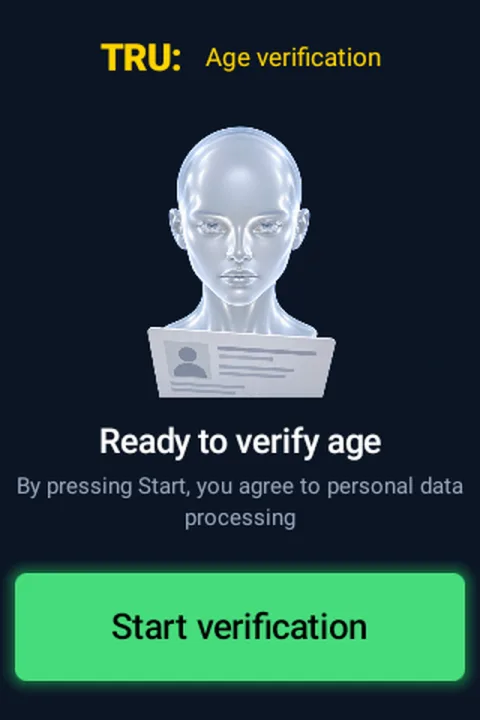
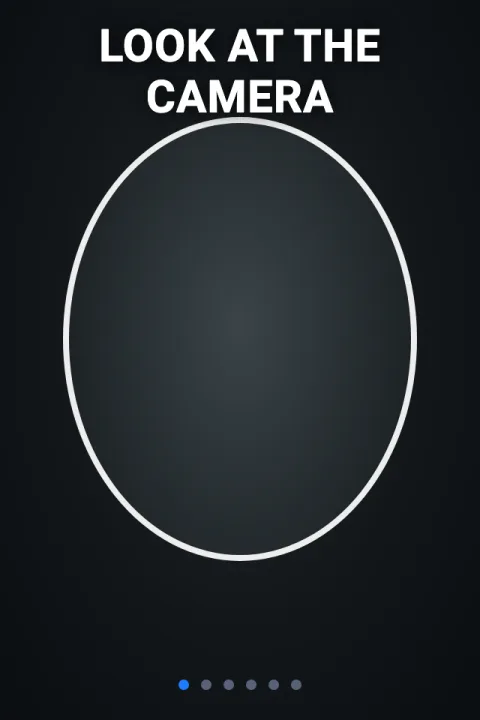
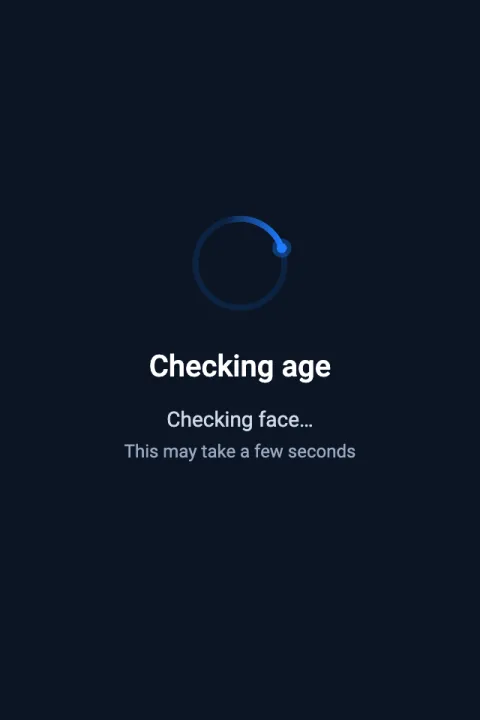
The customer presses Start verification and looks at the camera. The face is sent to TRUSTIKS, which decides the age.
TRU:IM25 · PAX IM25
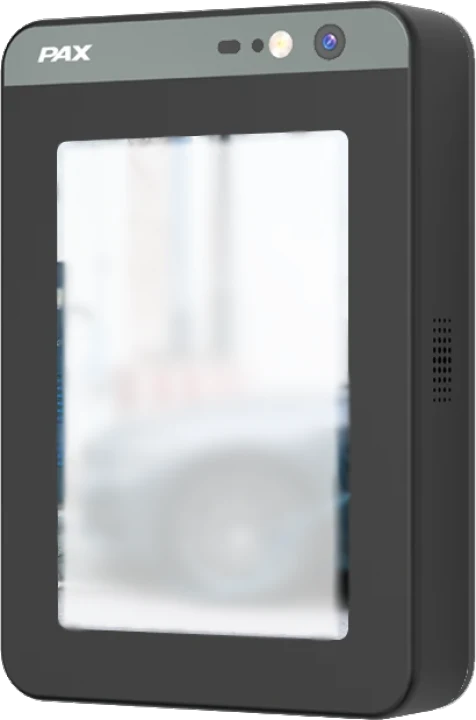
The TRU: PAX IM25 sits on the vending machine's MDB cashless port, checks the customer's age with TRUSTIKS and then takes the card payment through Viva — before the machine sells anything.
HOW IT WORKS
The customer presses Start verification and looks at the camera. The face is sent to TRUSTIKS, which decides the age.
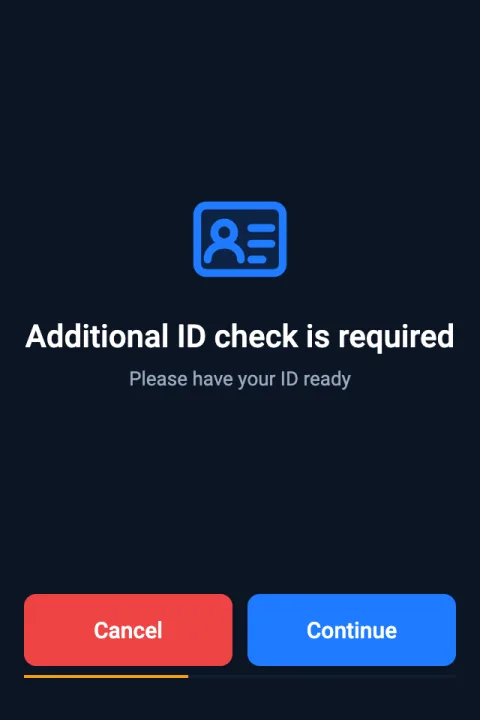
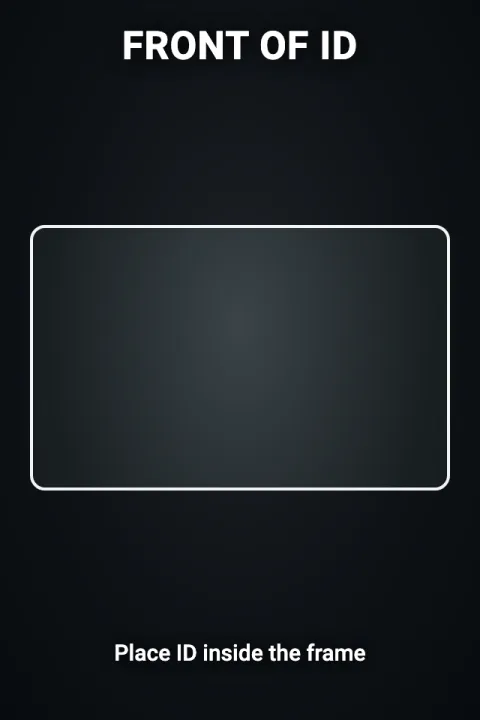
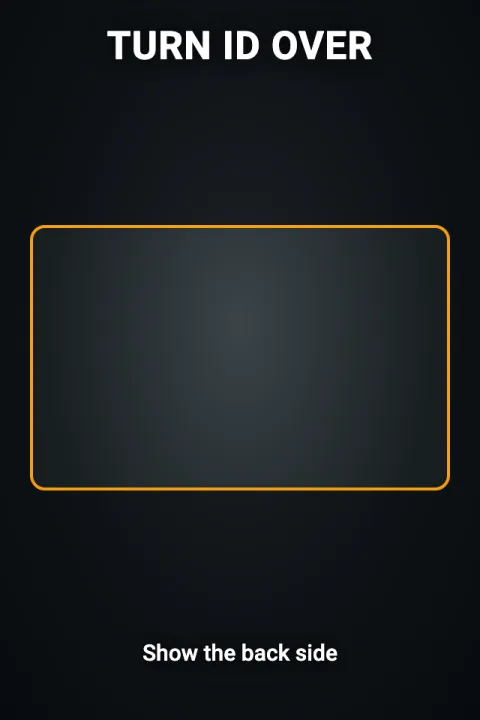
If the face alone is not enough, the terminal asks for an ID document — front and back.
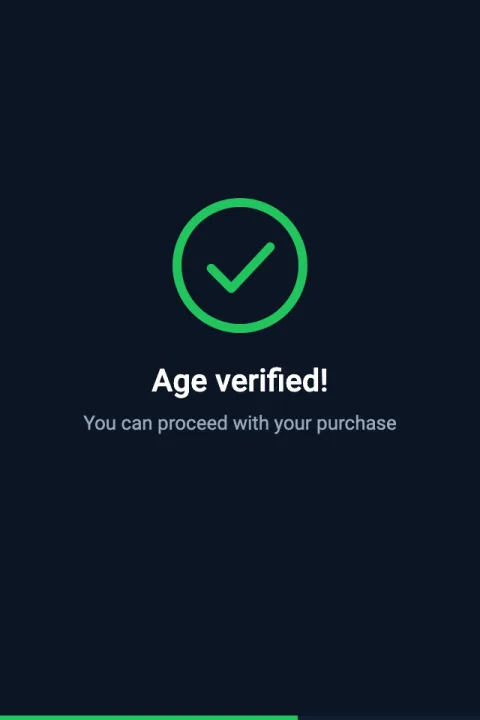
When the age is approved, the terminal tells the machine that a customer may shop and how much credit is available.
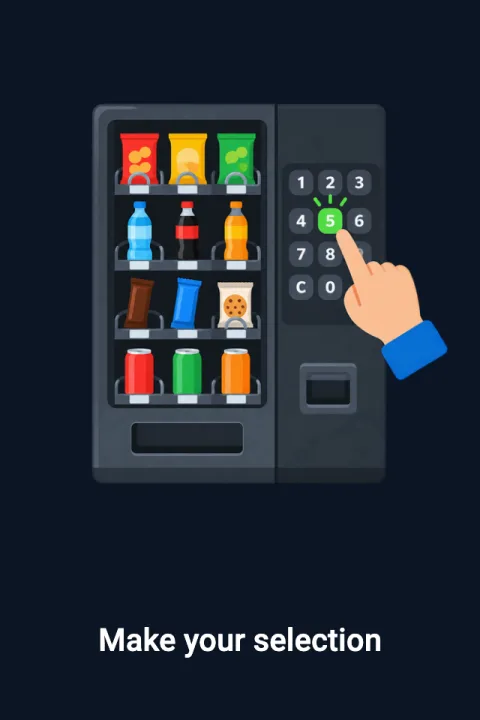
The customer picks a product on the machine. The machine sends its price to the terminal.
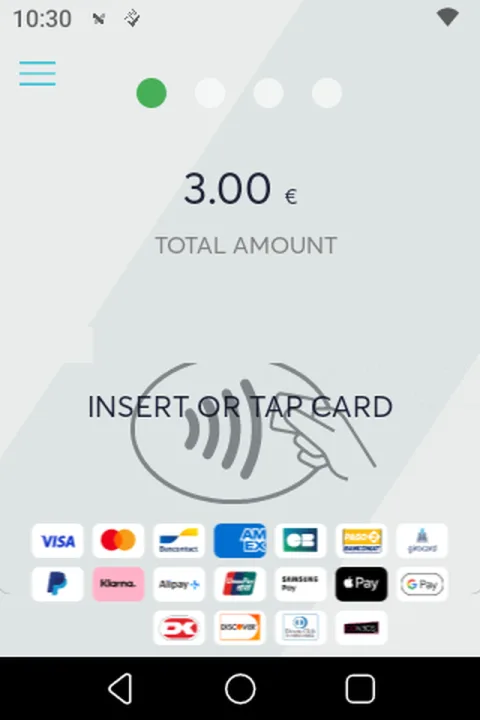
Age Check starts a Viva card payment for exactly that price. The customer taps or inserts a card.
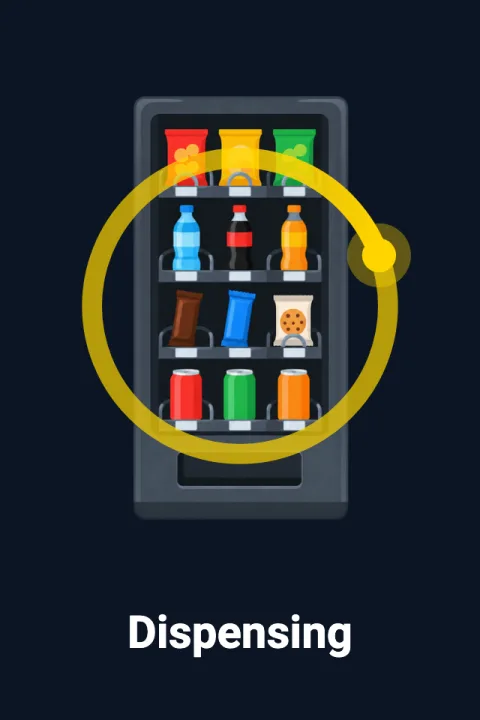
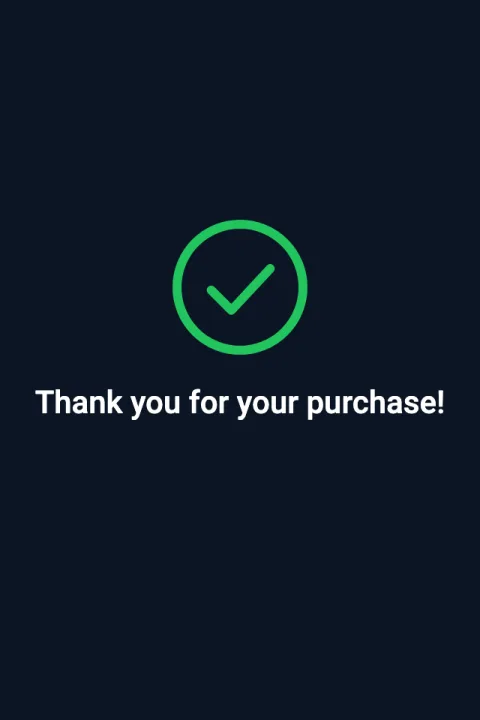
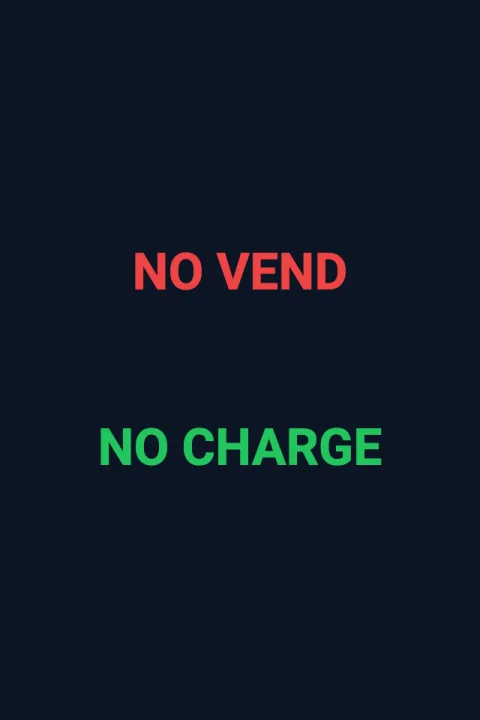
On payment approval the machine dispenses. If it cannot, the terminal shows NO VEND / NO CHARGE and asks Viva to cancel the sale.
Wi-Fi or Ethernet to TRUSTIKS — the age decision is made on the server.
The cable to the vending machine's cashless port.
The Viva Terminal app on the same PAX device takes the card payment.
Optional Restricted Items: only listed product numbers need the age check; everything else goes straight to payment.
CUSTOMER JOURNEY
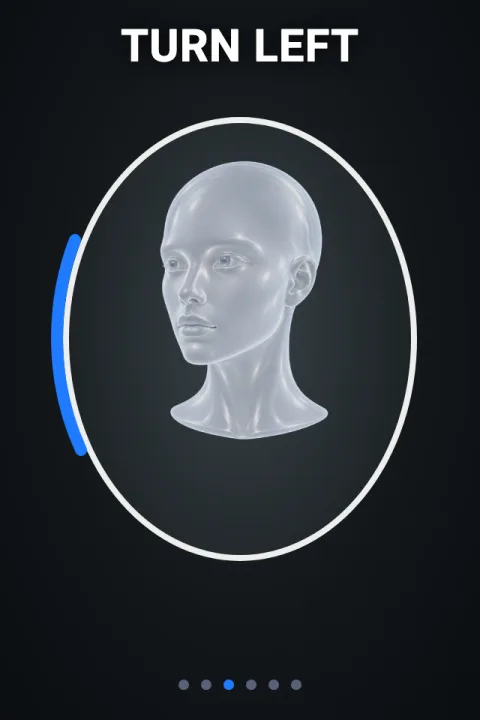
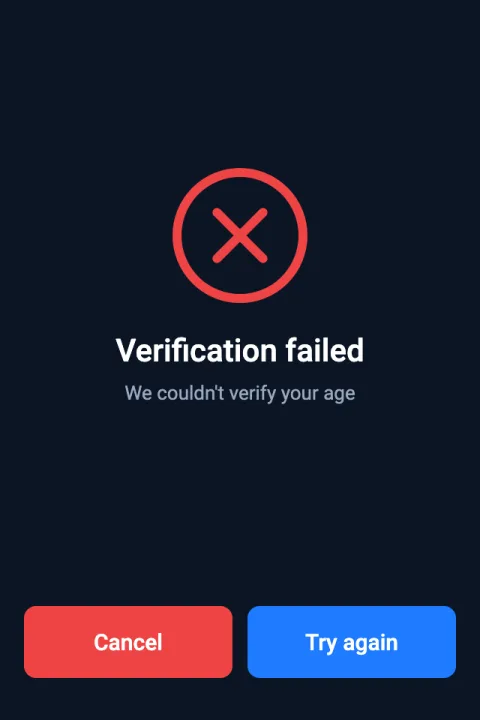
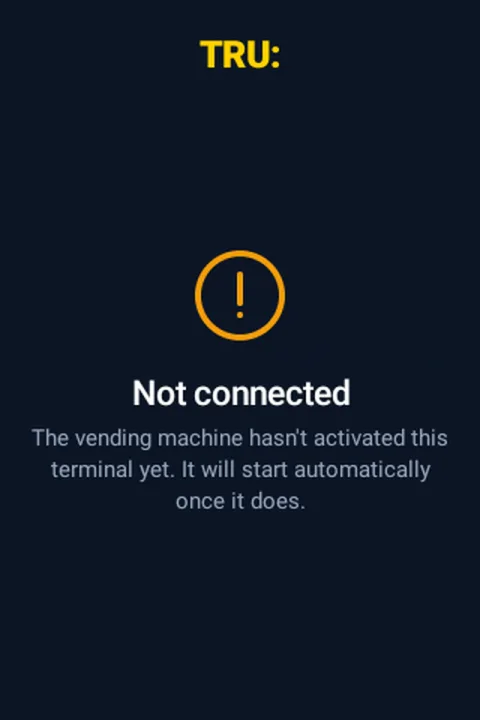
Real screens and illustrations of the terminal, in order. The ID steps appear only when the face check alone cannot decide.
SET-UP
Allow about 20 minutes the first time. All settings live in the Service menu: on the main screen hold the TRU: logo for about 5 seconds, then enter the service PIN from your delivery documents.
Hold the TRU: logo ~5 s; a ring fills, then the PIN pad opens. Three wrong PINs lock it for 30 s.
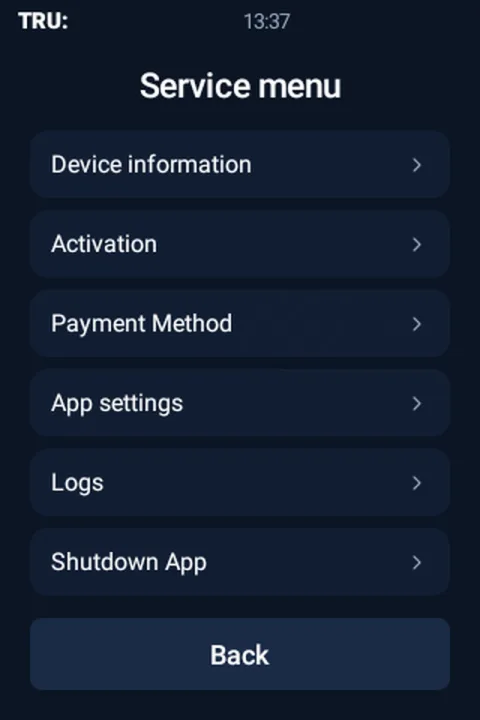
Ethernet needs only a cable. Wi-Fi: Device information → Internet connection → Wi-Fi connection → network → password → Connect.
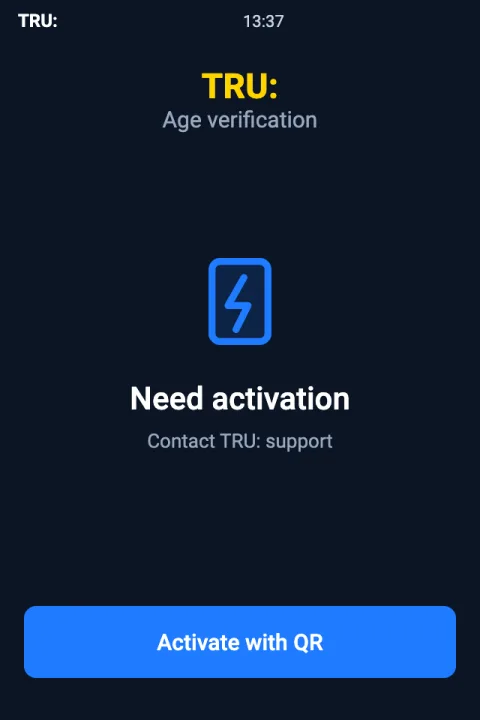
Need activation → Activate with QR → scan the TRUSTIKS QR. It works once and expires after 72 hours. Note the Device ID shown after success.
Device information → Change PIN. Enter it twice. Keep it safe — it cannot be shown or recovered.
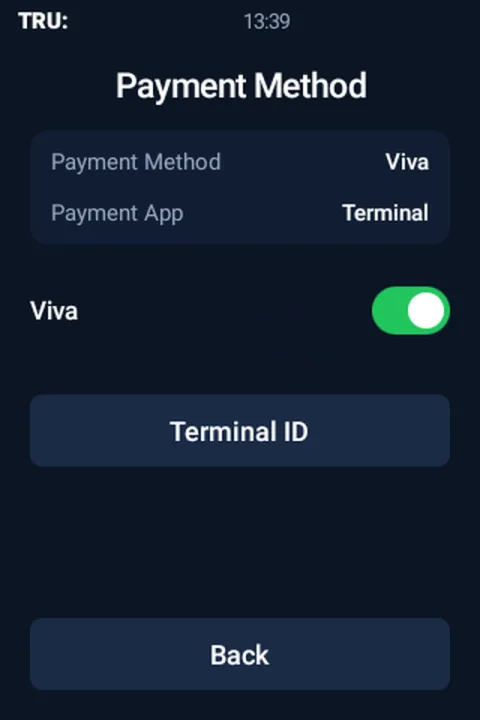
Payment Method → Viva on. The Payment App name appears. Grant Display over other apps if asked. The Viva Terminal ID is captured after the first sale.
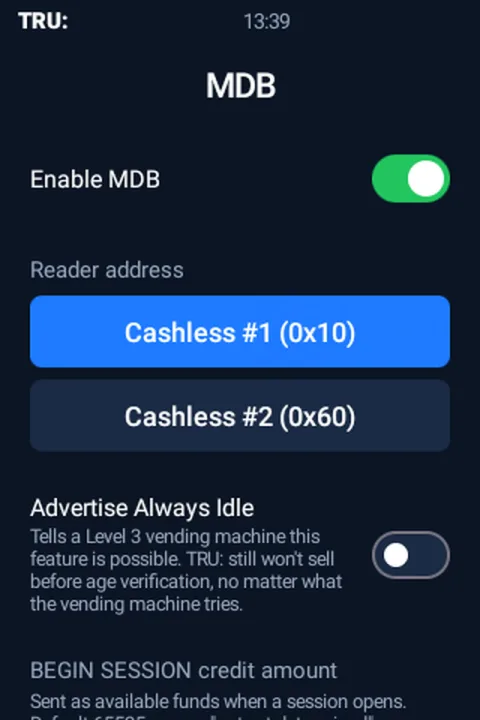
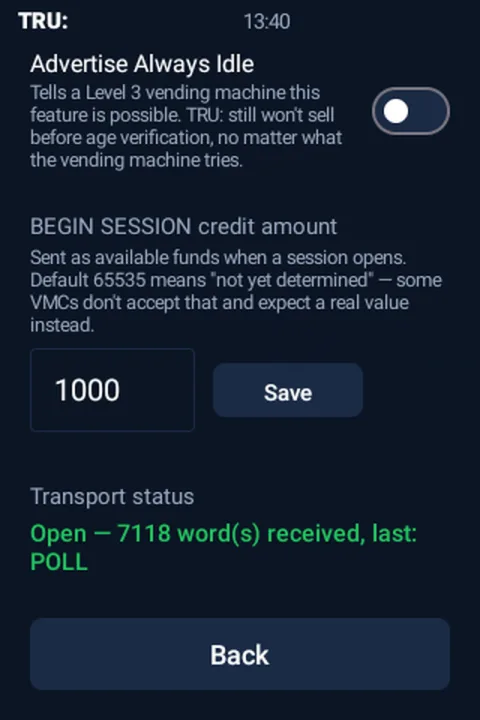
App settings → MDB → Enable MDB on, Reader address Cashless #1 (0x10), set the BEGIN SESSION credit amount, Save. Transport status must turn green.
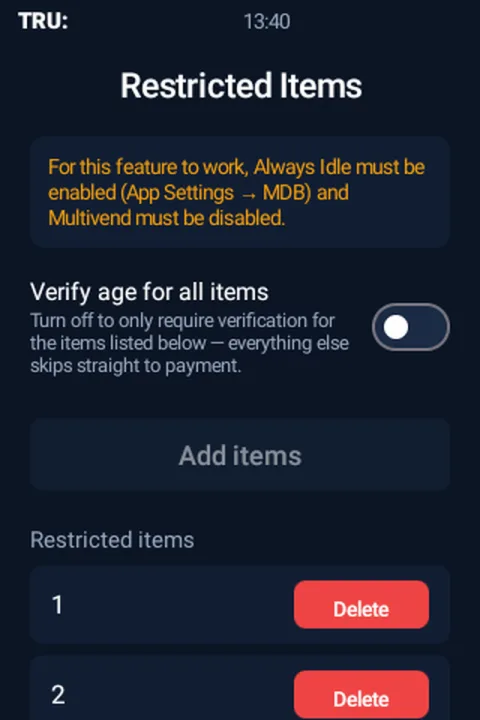
App settings → Restricted Items → switch off Verify age for all items → Add items → press the product buttons on the machine. Needs Always Idle on and Multivend off.
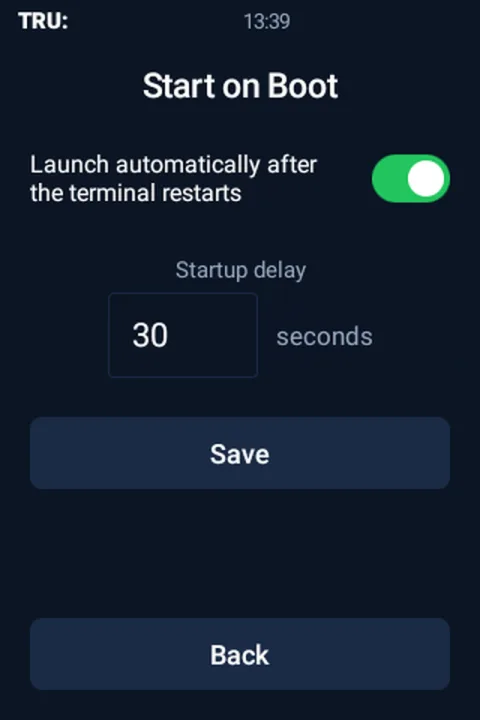
App settings → Start on Boot on, startup delay about 30 s, Save.
Buy the most expensive product once and read Service menu → Logs.
SETTINGS
| Setting | Where | Values | Factory | Recommended |
|---|---|---|---|---|
| Service PIN | Device information → Change PIN | 4 digits | from delivery docs | Your own number |
| Payment method | Payment Method | Viva / None | None | Viva |
| Viva Terminal ID | Payment Method → Terminal ID | digits | empty (DEMO) | Captured automatically |
| Approve Timeout | App settings | 5–300 s | 60 s | 60 s (ignored with MDB) |
| Start on Boot | App settings | On / Off | Off | On |
| Startup delay | App settings → Start on Boot | 0–120 s | 10 s | 30 s |
| Enable MDB | App settings → MDB | On / Off | Off | On |
| Reader address | App settings → MDB | #1 (0x10) / #2 (0x60) | #1 | #1 |
| Advertise Always Idle | App settings → MDB | On / Off | Off | On only with Restricted Items |
| BEGIN SESSION credit | App settings → MDB | 0–65535 (cents) | 65535 | Highest product price |
| Verify age for all items | App settings → Restricted Items | On / Off | On | On unless you need a list |
Activation → Reset erases the activation and every setting above (the event log is kept). Use it only on instruction from TRUSTIKS.
TROUBLESHOOTING
Before contacting support note the Device ID, the App version (Service menu → Device information), the exact on-screen text and the last few Logs entries.
| What you see | Likely reason | What to do |
|---|---|---|
| Not connected instead of Start | The machine has not enabled the terminal (no READER ENABLE). | MDB → Enable MDB on; Transport status green? Check the cable, try the other Reader address, power-cycle the machine. |
| Transport status: Error | The MDB connection could not be opened. | Toggle Enable MDB off/on, then restart the terminal. If it returns, send the red message to support. |
| Age approved, but products cannot be chosen (or only cheap ones) | BEGIN SESSION credit is below the price. | Set it to the highest price in cents and Save. |
| Connection error after Start | No internet. | Device information → Status Active? Check Wi-Fi or cable; restart the router. |
| Activation failed | QR expired, already used, for another environment, or no internet. | Check the internet and ask TRUSTIKS for a new QR. |
| Customer stays on the Viva screen after paying | Display over other apps not granted. | Payment Method → Grant permission; Approve Timeout must say Granted. |
| Charged but no product | The machine failed to dispense; the automatic cancel is not confirmed. | Check the sale in the Viva.com dashboard and refund manually; read Logs. |
| ID back side not captured | Some document backs are hard to detect. | Hold the card flat inside the frame; after 5 s press Capture now. |
| Amber / red “No internet” bar | Connection lost (red after 5 min). | Fix the network; restart the terminal if the bar is red. |
| App does not open after a restart | Start on Boot is off. | Turn Start on Boot on with a delay; open the app once by hand. |
| Service disabled | TRUSTIKS switched the service off for this terminal. | Contact TRUSTIKS; press Try again once it is re-enabled. |
| Forgot the PIN | It cannot be shown or recovered. | Contact TRUSTIKS support. |
TIMINGS
FAQ
The picture is sent to TRUSTIKS for the decision and the temporary file on the terminal is deleted right after. Retention is set by your agreement with TRUSTIKS.
The age check works on its own; choosing, paying and dispensing need the MDB link.
No. The customer pays the real product price on the Viva screen.
The MDB link is configured for euros, amounts in cents.
Yes.
TRUSTIKS delivers new versions remotely; keep the terminal online.
TRU:IM25
We help with activation QR codes, MDB set-up and the first test purchase.